Track QR code scans in Google Analytics 4
Aktualisiert am 20. September 20267 Min. Lesezeit
Englischer Artikel
Dieser Guide ist noch nicht in Ihre Sprache übersetzt, Sie lesen die englische Version.
GA4 cannot see a poster. It only sees the session that starts when a phone opens your page, and by default that session looks like direct traffic with no story behind it. Two settings fix that: parameters on the destination link, and a scan event sent from our server. Use both and you get the full path, from the print run to the purchase.
Which method do you need?
| UTM parameters | Server-side qr_scan event | |
|---|---|---|
| What it measures | The session after the scan: pages, conversions, revenue | The scan itself, even if the visitor closes the page immediately |
| Works with | Any destination you control, static or dynamic code | Dynamic codes only — the scan has to pass through us |
| Setup | Build the link once, no GA4 access needed | Measurement ID plus a Measurement Protocol API secret |
| Shows up in GA4 as | Traffic acquisition, source/medium, campaign | An event named qr_scan with the code name and destination |
| Blind spot | Scans that never load the page (bad signal, instant close) | Nothing about what happened after the redirect |
Step 1 — tag the destination with UTM parameters
UTM parameters are plain text appended to your destination URL. GA4 reads them on arrival and files the session under a source, medium and campaign of your choosing.
https://example.com/menu?utm_source=qr_code&utm_medium=offline&utm_campaign=autumn_menu&utm_content=table_tent- Open the free <a href="/tools/utm-builder">UTM builder</a> and paste your destination.
- Set utm_source to the physical place the code lives: <code>table_tent</code>, <code>window</code>, <code>flyer_may</code>, <code>packaging</code>.
- Keep utm_medium the same on every printed code — <code>offline</code> or <code>print</code> — so GA4 groups all of them into one channel.
- Use utm_campaign for the initiative, not the material: <code>autumn_menu</code>, <code>launch_2026</code>.
- Copy the tagged link and paste it as the destination of your code.
With a dynamic code you can change these parameters after printing: the code points at our short link, and the tagged destination sits behind it. That is how you reuse the same poster for a second campaign without reprinting.
Step 2 — forward each scan to GA4 server-side
A redirect renders no page, so there is no browser to run the GA4 tag at the moment of the scan. Instead we send the event ourselves through the GA4 Measurement Protocol, immediately after the visitor is redirected.
- In GA4, open Admin, then Data streams, and select your web stream.
- Copy the Measurement ID (it looks like <code>G-XXXXXXXXXX</code>).
- On the same screen open Measurement Protocol API secrets, create a secret and copy its value.
- In Qreator, open your dynamic code, choose Rules, and scroll to the Google Analytics 4 section.
- Paste the Measurement ID and the API secret, then save. Scans from that moment on are forwarded.
| Field | Value | Use it for |
|---|---|---|
| Event name | qr_scan | Build a GA4 exploration or a conversion on offline scans |
| qr_name | The name you gave the code | Compare placements: window vs flyer vs table |
| short_code | The code in the short link | Tie the event back to a specific printed run |
| destination | The URL the visitor was sent to | Spot codes still pointing at an old page |
Step 3 — verify it works before the print run
- Open GA4 Realtime, then scan your own code with your phone.
- Within a minute you should see a qr_scan event and, if you tagged the destination, a session with source <code>qr_code</code>.
- No event? Re-check the Measurement ID for a typo and confirm the secret belongs to the same data stream.
- Event but no session: the page loaded a cached version without UTMs — scan again with the tagged link pasted straight into the browser to isolate it.
Do you still need our analytics?
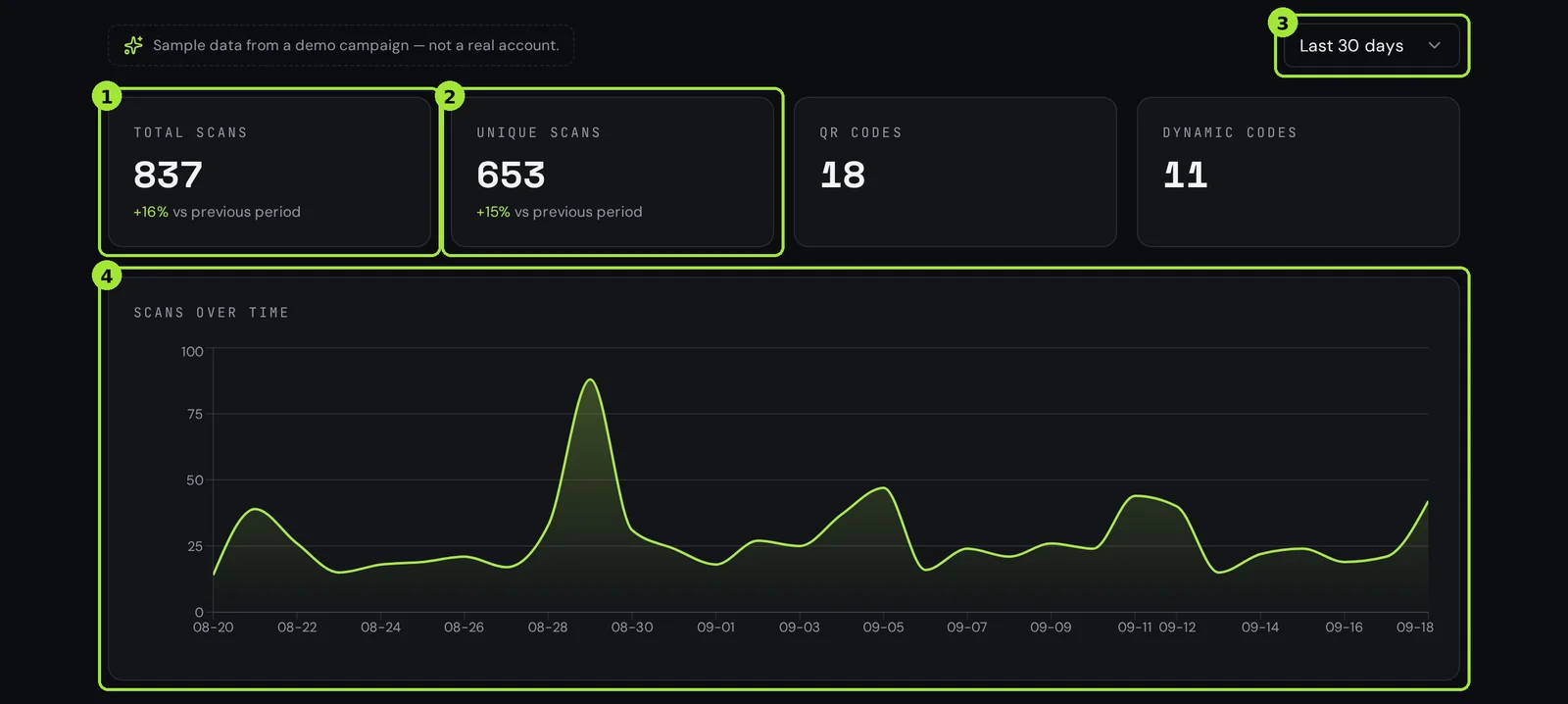
- Scans blocked by a password gate, a scan limit or an expired schedule never reach your site, so GA4 cannot count them. We do.
- GA4 loses the session when a visitor has ad blocking or denies consent; a server-side scan event is unaffected.
- GA4 is where you attach revenue. Our numbers tell you which placement earned the scan.
Häufige Fragen
- Can Google Analytics track a static QR code?
- Only indirectly. A static code contains your URL, so GA4 sees the visit but nothing about the scan. Add UTM parameters to the URL before you print and GA4 will at least attribute the session to the printed campaign. Scans that never load the page stay invisible.
- Why do my QR scans show up as direct traffic in GA4?
- Because the destination has no UTM parameters and a camera app passes no referrer. Tag the destination with utm_source, utm_medium and utm_campaign, and the sessions move out of direct into the channel you named.
- Do I need a Measurement Protocol API secret?
- Only for the server-side qr_scan event. UTM parameters need nothing from GA4. The secret is created in GA4 under Admin, Data streams, your web stream, Measurement Protocol API secrets.
- Will scan numbers match between GA4 and Qreator?
- No, and that is expected. We count every scan that reaches the redirect; GA4 counts sessions that actually loaded your page. Slow networks, instant closes, consent refusals and tracker blocking all explain a gap of 10 to 30 percent.
- Does forwarding scans to GA4 send personal data?
- No. The event carries the code name, the short code and the destination, with non-personalised ads enabled. No IP address, no device identifier and nothing that identifies a person is sent.
Nächste Schritte
- Understand your scan analyticsScans over time, countries, devices and referrers — and what each one is good for.
- Static or dynamic: which QR code do you need?One decision decides whether you can fix a mistake after printing. Here is how to make it in thirty seconds.
- Change where a printed QR code pointsThe single feature people buy dynamic codes for: update the link, keep the print.