How to create a QR code for a business card
Aktualisiert am 20. September 20266 Min. Lesezeit
Englischer Artikel
Dieser Guide ist noch nicht in Ihre Sprache übersetzt, Sie lesen die englische Version.
A vCard QR code carries your whole contact record inside the image. Someone points a camera at your business card, the phone offers to save the contact, and your details land in the address book spelled correctly. No app to install, no landing page to load, nothing that can expire — the code works in a lift with no signal, years after it was printed.
Fill in your contact details
Open the vCard generator and pick vCard as the type. Fill the fields as you want them saved: the text you type is exactly what appears in the other person's contacts app, capital letters included. Write the phone number in international format with the country code, so it dials from abroad as well as from the next street.
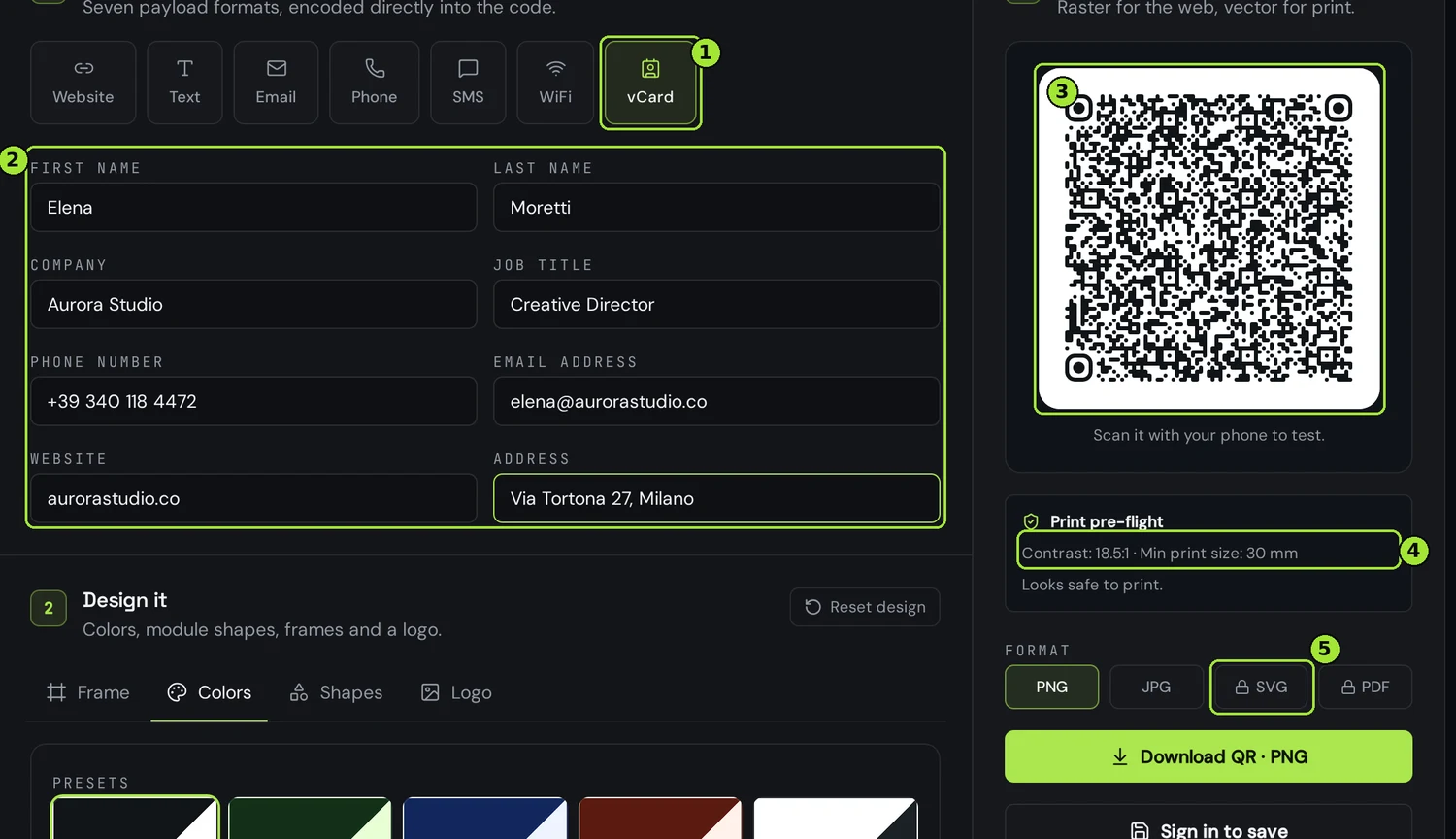
Every field you add makes the pattern denser, and a denser pattern needs a larger printed square. That matters more here than anywhere else, because a business card leaves you about two centimetres of space. Fill the six fields people actually use and leave the rest empty.
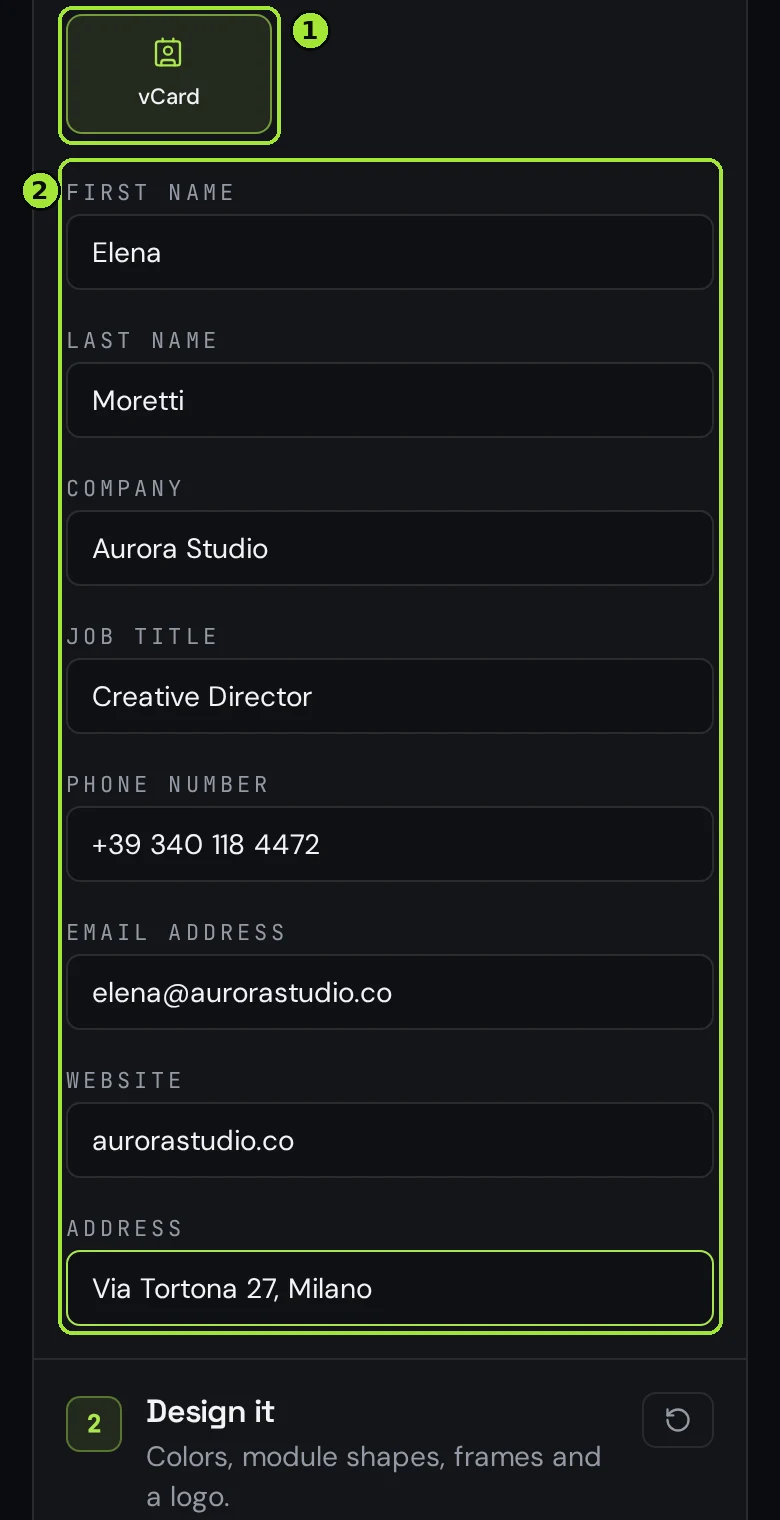
Decide which fields to keep
| Field | Keep it or skip it | Why |
|---|---|---|
| First and last name | Always | Without a name the phone saves a nameless contact and people cannot find you |
| Company and job title | Usually | Adds two short lines and makes you searchable by company later |
| Phone number | Always, in international format | +39 340 118 4472 dials from any country; a local format does not |
| Email address | Always | The one action people take after a meeting |
| Website | Yes, without https:// | Shorter payload, same tappable link on iOS and Android |
| Address | Only if people visit you | The longest field by far — it inflates the pattern the most |
Test it, then download a print file
Scan the on-screen preview with your own phone before you download anything. You should see a save-contact sheet with your name on it — that five-second test catches a typo in the email address better than any proofreading. Then check the pre-flight line: it tells you the contrast and the smallest size at which the code still scans reliably.
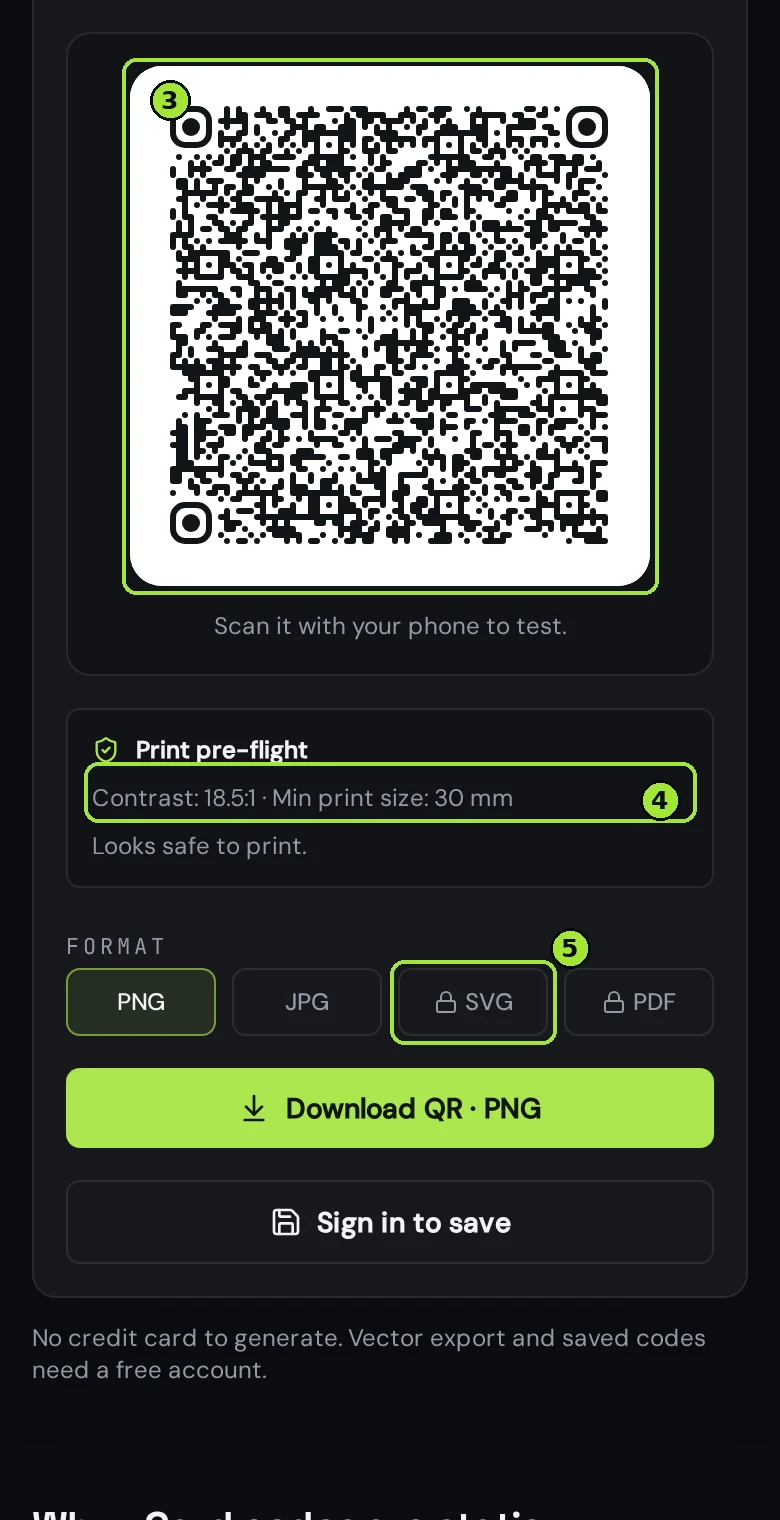
Download SVG or PDF, never PNG, for anything going on card stock: they are vector files that stay razor-sharp at any size, and the PDF comes out at the exact physical width you choose, so your designer or print shop has nothing to resample. Place the code with a clear white margin all around it — crowding it against text or the card edge is the most common reason a card-sized code fails.
Static vCard or a dynamic contact page?
The vCard code above is static: your details live inside the image, so it works offline and forever — and it cannot be edited once the cards are printed. Change your phone number and that batch of 500 cards is out of date.
If you move jobs, change numbers or want to know how often the code is scanned, build a dynamic contact page instead. It shows your photo, your role and a Save contact button that generates the vCard on the spot, and the printed code points at a link you control: edit the page and every card already in someone's wallet updates itself. You also get scan counts, countries and devices.
The card-sized print checklist
- At least 20 mm per side, 25 mm if the code carries an address — check the pre-flight number rather than guessing.
- A quiet margin of about four module widths on all sides; the PDF export already includes it.
- Dark code on a light background. Inverted codes and pale colours are the main cause of failed scans, far more than size.
- Matte card stock rather than high gloss: a spotlight on glossy varnish blinds the camera.
- Print your phone and email in plain text too — someone with a cracked lens still has to reach you.
Häufige Fragen
- How small can a business card QR code be?
- About 20 mm per side for a short vCard, and 25 mm or more once you add a postal address. The pre-flight line in the generator calculates the exact minimum for your code, because it depends on how much data you encoded.
- Does a vCard QR code work without internet?
- Yes. The contact record is encoded inside the image, so the phone reads it locally and offers to save the contact with no connection at all. A dynamic contact page, by contrast, needs a signal to open.
- Can I change my phone number after the cards are printed?
- Not with a static vCard code — the number is inside the image. Print a dynamic code pointing at a contact page instead, and edit the page whenever your details change.
- Which file should I send to the print shop?
- SVG or PDF. Both are vector, so they stay sharp at any size, and the PDF is exported at the exact physical width you pick, with a safety margin already included. PNG and JPG are for screens only.
- Does it work on both iPhone and Android?
- Yes. The code uses standard vCard 3.0, which the native camera app reads on iOS and Android and hands straight to the contacts app — no scanning app required.
- Where is my contact data stored?
- Nowhere. A static vCard code is generated in your browser and the details are encoded into the image itself, so they never reach our servers.
Nächste Schritte
- QR codes for trade shows and exhibition standsLead capture without a clipboard, spec sheets per product, the catalogue as a PDF nobody has to carry, and a report that finally tells you which show paid for itself.
- Static or dynamic: which QR code do you need?One decision decides whether you can fix a mistake after printing. Here is how to make it in thirty seconds.
- How to create your first QR codeFrom an empty editor to a print-ready file in about two minutes, with the choices that matter explained.
Ausführliche Guides
- vCard QR codes that actually save the contactA vCard QR code encodes the entire contact card as text, so field choices and formatting decide whether it saves cleanly or fails at business-card size.
- Static vs dynamic QR codes: the definitive guideThe difference isn't a marketing tier, it's a difference in what is physically encoded in the pixels — and it decides whether you can ever change the destination.
- How to print QR codes: size, format and best practicesPrinting a QR code is not just about dropping a PNG into a layout. Format, size, contrast and material all decide whether the code scans reliably.