How to create a Google review QR code
Atualizado em 20 de setembro de 20265 min de leitura
Artigo em inglês
Este guia ainda não está traduzido para o seu idioma, por isso está a ler a versão inglesa.
Most review QR codes fail for a boring reason: they point at the business listing instead of the review form. The customer lands on a map, has to scroll, find “Write a review”, and half of them give up. The fix is a single link — the write-a-review URL — which opens the star dialog straight away, already signed in on almost every phone.
Find your Place ID
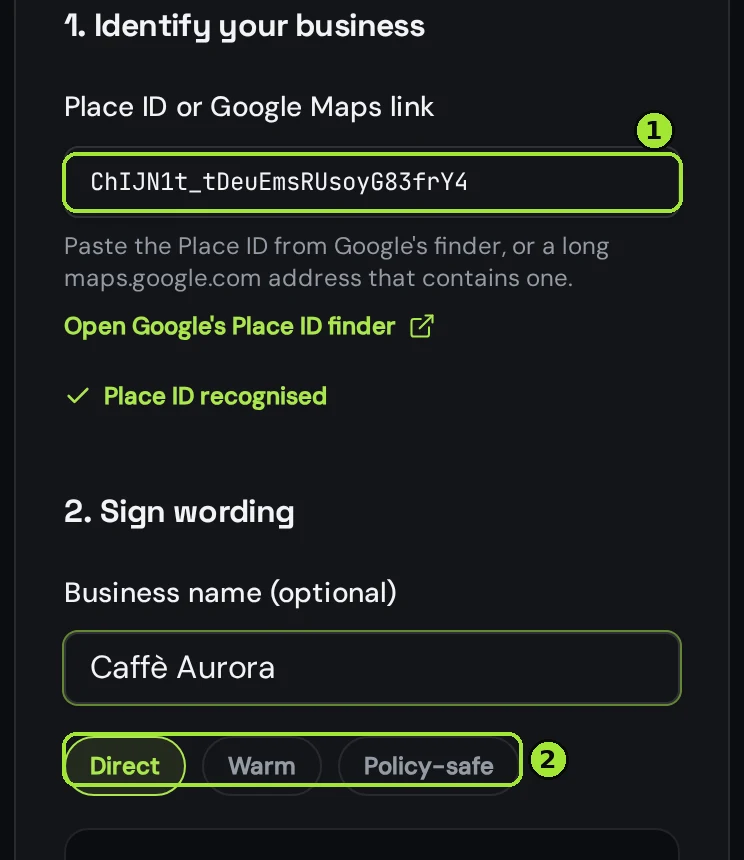
Google identifies your business with a Place ID, a string that starts with ChIJ. Open Google's Place ID finder, search your business name and address, and copy the whole ID from the map pin. Paste it in the free tool — you can also paste a long maps.google.com address that already contains the ID and it will be extracted for you.
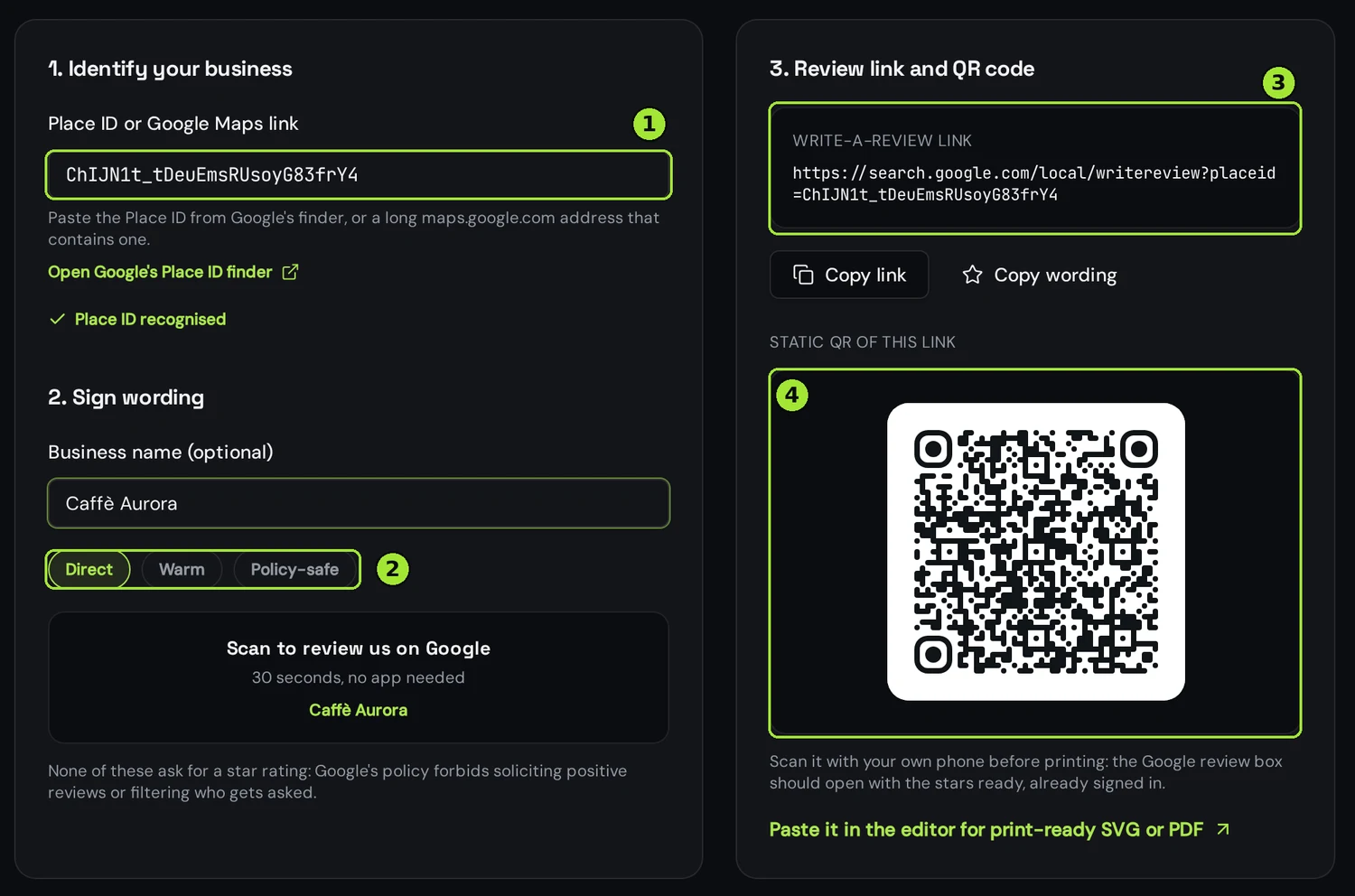
Write the sign, stay inside the rules
Google's review policy forbids asking for positive reviews, offering anything in exchange, and only asking the happy customers. None of that is a grey area: it is the fastest way to have reviews filtered out. Ask neutrally, say how long it takes, and let people write what they think.
| On the sign | Why it works | Avoid |
|---|---|---|
| Scan to review us on Google | Neutral ask, no rating suggested | “Leave us 5 stars” |
| Tell us how it went — 30 seconds | Invites honest feedback | “Only post if you loved it” |
| Your feedback keeps us going | No incentive, no filtering | “Free coffee for a review” |
Print it where the ask makes sense
Put the code where the experience just ended: the receipt, the table tent, the delivery box, the back of the business card, the counter next to the card reader. Print it at 30 mm per side or more, keep a clear margin around it, and choose SVG or PDF in the editor so the print shop gets a vector file at the exact size.
Scan the printed proof with your own phone before ordering a hundred of them. The Google review dialog should open with the stars showing and your business name at the top.
Track the scans, change the link later
The free tool gives you a static code: fast, permanent, no account, and no idea how many people scanned it. Paste the same review link into a dynamic website code in the editor and you get scan counts by day, city and device — plus the ability to swap the destination without reprinting, for instance to send scans to a feedback form during a busy season and back to Google afterwards.
Perguntas frequentes
- Where do I find my Place ID?
- In Google's Place ID finder: search your business name and address and the map pin shows an ID starting with ChIJ. Copy the whole string and paste it in the tool.
- Why not just link to my Google listing?
- Because the listing opens a map, not the review form. The write-a-review link opens the star dialog directly, which is where the drop-off disappears.
- Is it against Google's rules to print a review QR code?
- No. Asking for reviews is allowed. What is not allowed is asking for positive reviews, offering incentives, or only asking customers you expect to be happy.
- Can I see how many people scanned it?
- Not with the free static code. Paste the same review link into a dynamic website code in the editor and you get scans by day, city and device.
- Can I change where it points after printing?
- Only with a dynamic code. A static QR carries the link inside the image, so changing the destination means reprinting.
Próximos passos
- QR codes for hair salons and barbershopsThe rebooking ask that happens while the client pays, one code per stylist, the review request at the door, and the window that fills chairs on a rainy Tuesday.
- QR codes for gyms, studios and salonsA gym needs five codes, not fifteen: booking, signup, Wi-Fi, reviews and forms. Where each one goes, how big to print it, and which ones must stay editable after printing.
- Static or dynamic: which QR code do you need?One decision decides whether you can fix a mistake after printing. Here is how to make it in thirty seconds.
Guias aprofundados
- Static vs dynamic QR codes: the definitive guideThe difference isn't a marketing tier, it's a difference in what is physically encoded in the pixels — and it decides whether you can ever change the destination.
- QR codes for restaurants: from menu to reviewsA practical setup for restaurant QR codes that covers the menu, guest WiFi and post-meal reviews without reprinting every season.
- How to print QR codes: size, format and best practicesPrinting a QR code is not just about dropping a PNG into a layout. Format, size, contrast and material all decide whether the code scans reliably.