How to create a WiFi QR code
Atualizado em 20 de setembro de 20266 min de leitura
Artigo em inglês
Este guia ainda não está traduzido para o seu idioma, por isso está a ler a versão inglesa.
A WiFi QR code carries the network name, the security type and the password inside the image itself. The camera app reads it, the phone offers to join, and nobody spells out a 24-character password across a counter. Because nothing is fetched from the internet, the scan works in a basement flat, a hotel room or a café with no signal.
Fill in the network details
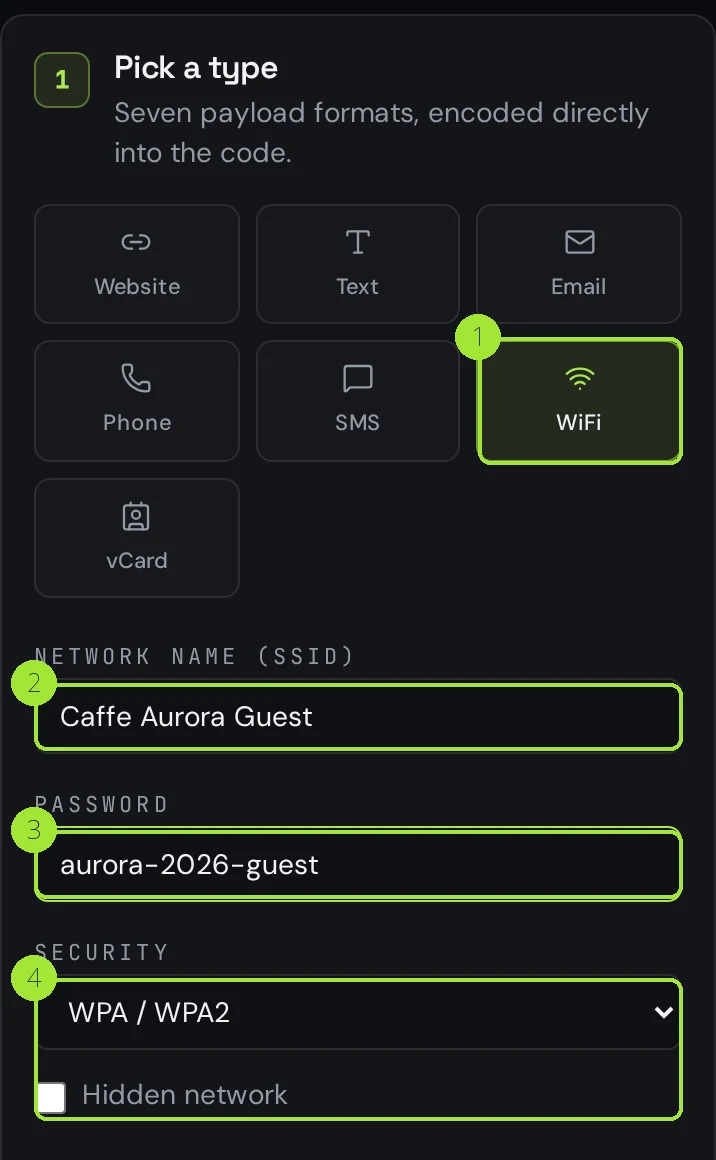
Open the WiFi generator, pick the WiFi type, then type the network name exactly as it appears in your phone's WiFi list — capital letters, spaces and accents included. One wrong character and the phone will look for a network that does not exist. Paste the password rather than retyping it, for the same reason.
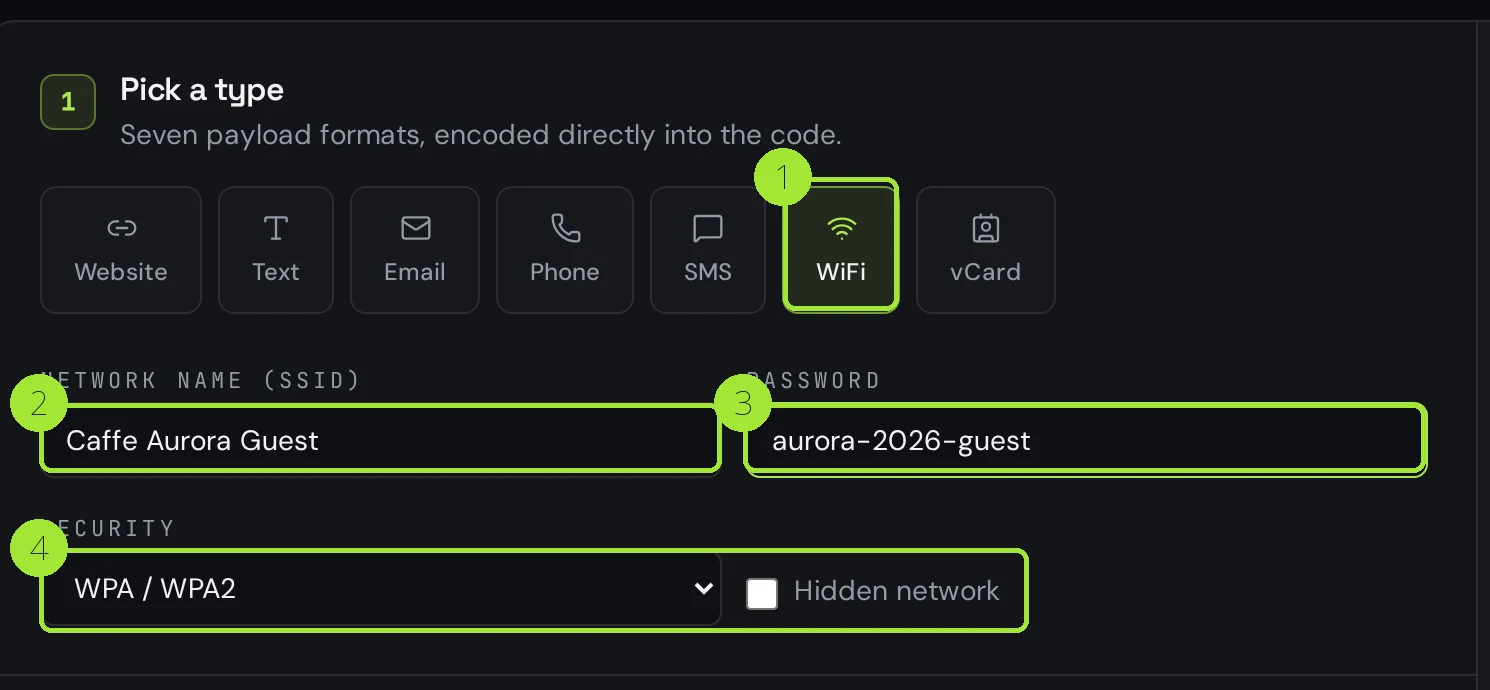
The code on the right redraws on every keystroke, so you can scan the screen with your own phone before you download anything. If your phone joins, the code is correct — that test takes five seconds and catches every typo.
Pick the right security type
This is where most WiFi codes fail. The security value tells the phone how to authenticate; get it wrong and the join is refused even though the password is right. Almost every router made in the last decade is WPA2 or WPA3, and both are covered by the WPA / WPA2 option.
| Your router setting | Pick in Qreator | Notes |
|---|---|---|
| WPA3 / WPA2 / WPA | WPA / WPA2 | Covers every modern home and business router |
| WEP | WEP | Legacy only — replace the router if you still use it |
| No password (open) | Open | The password field is ignored |
| SSID not broadcast | WPA / WPA2 + Hidden network | Android needs the hidden flag or the join fails |
Download a file you can print
PNG is right for a screen, a chat message or a slide. For anything that goes on paper — a table tent, a room card, a laminated sign at reception — choose SVG or PDF: they stay sharp at any size, and the PDF comes out at the exact physical width you select, so the print shop has nothing to resize.
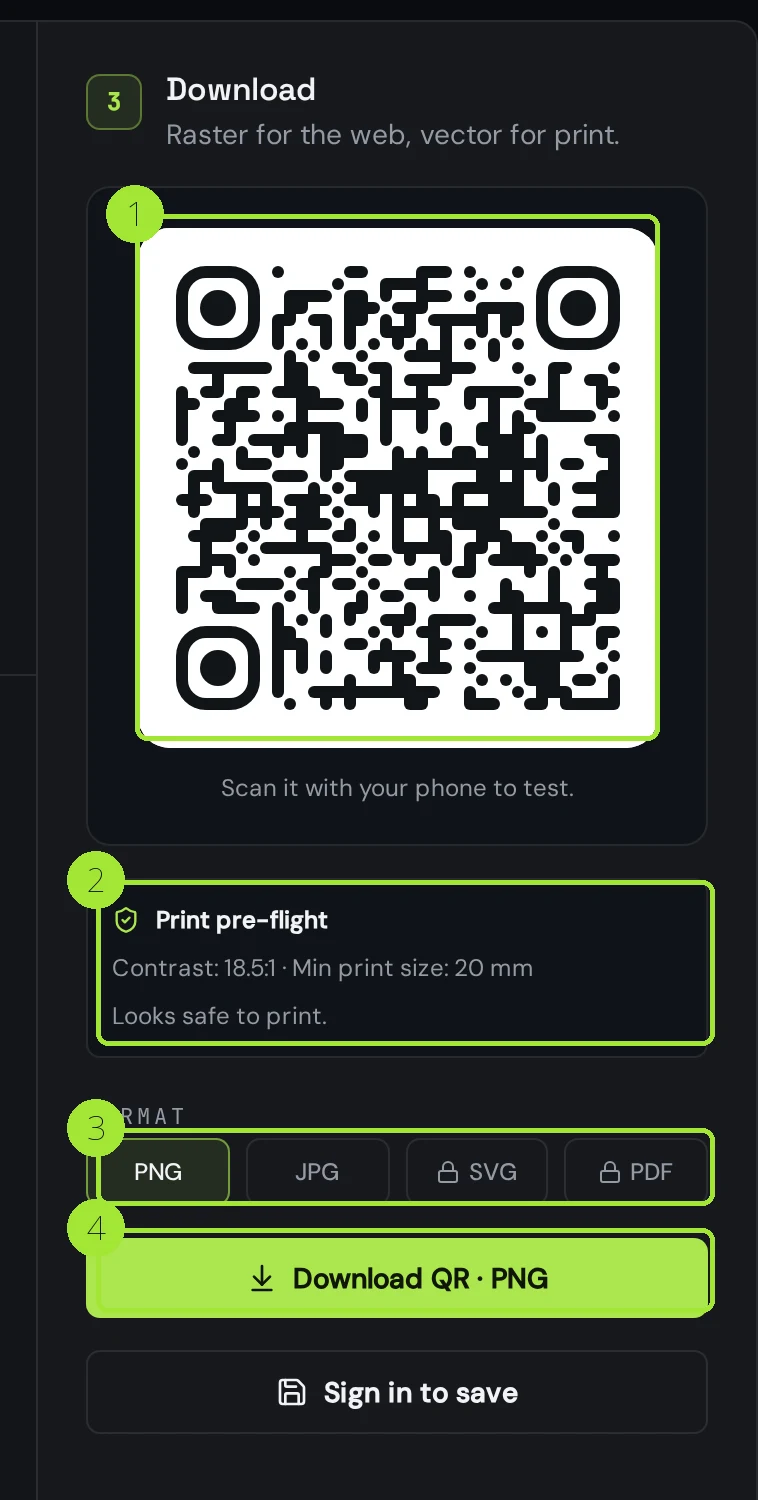
Print at 30 mm or more per side for a sign people scan from arm's length, keep a clear margin all around the code, and write the network name in plain text underneath. A guest whose camera refuses to cooperate can then still connect by hand.
Plan for the password changing
A WiFi code is static by design: the credentials live inside the image, which is exactly why it works offline — and exactly why it dies the day you rotate the password. If you change it often, print a dynamic website code instead, pointing at a small page that shows the current network and password. You edit that page and every printed card keeps working.
The same trick suits venues with several networks: one code on the table, one page listing guest WiFi, the menu and your review link. And because the dynamic code is tracked, you can finally see how many guests actually scan it.
Is it safe to print your password?
Anyone who can see the printed code can read the password, exactly like a password written on a card — so treat the sign as public. The rule that matters: never encode the network your point-of-sale, cameras or office computers sit on. Put guests on a separate guest network in the router, and the printed code hands out access to that network only.
Perguntas frequentes
- Does a WiFi QR code work without internet?
- Yes. The network name, security type and password are encoded inside the image, so the phone reads everything locally. That is why a WiFi code is the one code that works with no signal at all.
- Does it work on both iPhone and Android?
- Yes. iOS 11 and later and Android 10 and later recognise the WiFi format in the native camera app. Older Android phones may need the WiFi QR scanner built into their settings screen.
- Why does my phone say the network is out of range?
- Usually the network name is not spelled exactly as broadcast, or the network is hidden and the hidden-network option was not ticked. Check both, then rescan the live preview before printing again.
- Can I change the password later without reprinting?
- Not with a WiFi code — the password is inside the image. Print a dynamic website code pointing at a page that lists the current credentials, and edit that page whenever the password changes.
- Can I track how many guests scan it?
- Not for a WiFi code: the scan never touches our servers. If you need scan counts, use a dynamic website code that opens a WiFi instructions page, and read the analytics on that code.
Próximos passos
- QR codes for vacation rentals and short letsArrival instructions at the door instead of in a chat thread, Wi-Fi without typing, a house guide you can edit from your phone, and the review request in the one place guests actually stop.
- QR codes for hotels and guest housesCheck-in, room Wi-Fi, the room directory, the bar menu and the review request. Which of the five must stay editable after printing, how big to print each one, and when one code per room is worth it.
- How to create your first QR codeFrom an empty editor to a print-ready file in about two minutes, with the choices that matter explained.
Guias aprofundados
- Static vs dynamic QR codes: the definitive guideThe difference isn't a marketing tier, it's a difference in what is physically encoded in the pixels — and it decides whether you can ever change the destination.
- QR codes for restaurants: from menu to reviewsA practical setup for restaurant QR codes that covers the menu, guest WiFi and post-meal reviews without reprinting every season.
- How to print QR codes: size, format and best practicesPrinting a QR code is not just about dropping a PNG into a layout. Format, size, contrast and material all decide whether the code scans reliably.