How to add a logo to a QR code
Aggiornato il 20 settembre 20266 min di lettura
Articolo in inglese
Questa guida non è ancora tradotta nella tua lingua: stai leggendo la versione inglese.
A QR code is readable even when part of it is destroyed: the format stores redundant data so a scratch, a fold or a logo can be reconstructed. That is why a centre image works at all. The only question worth answering is how much of the pattern you are allowed to cover — and the answer is smaller than most brand guidelines assume.
Upload your logo in the editor
Open the branded generator, type your destination, then open the Logo tab in step 2 and choose a file. PNG, JPEG and SVG all work; a square image with a transparent or white background gives the cleanest result, because the logo sits on a small cleared patch in the middle of the code.
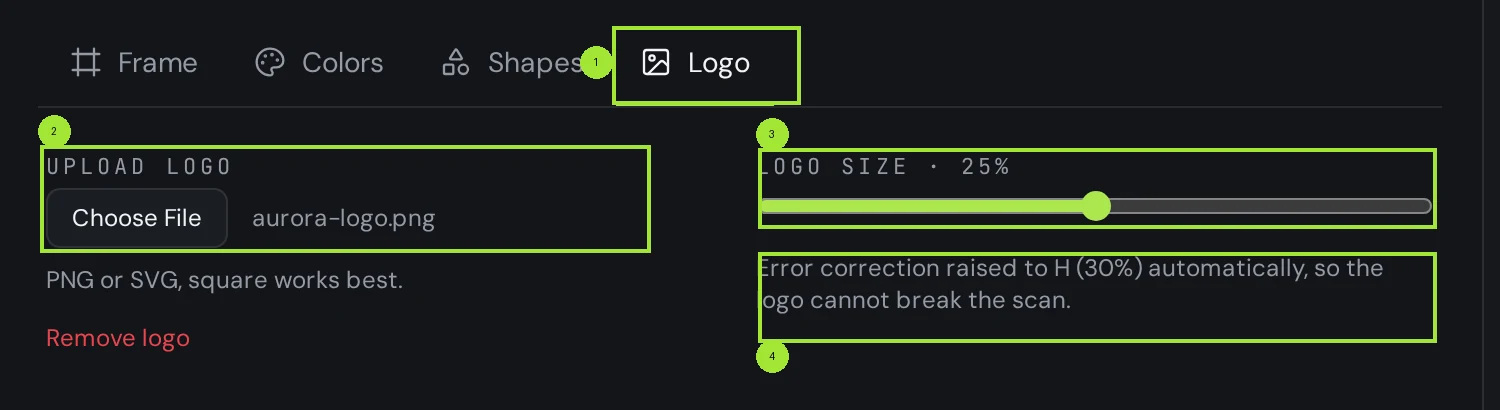
The file never leaves your browser: it is encoded into the image you download, so there is no upload step and nothing stored on our side. A wide horizontal wordmark technically works, but it eats the pattern left and right — a compact monogram reads better at the size a QR centre allows.
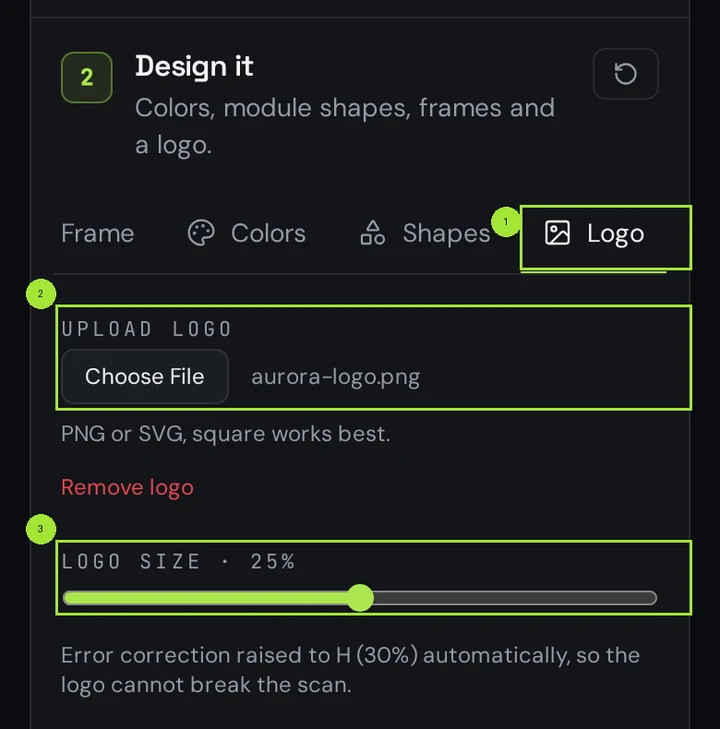
How big the logo can be
The slider runs from 15% to 35% of the code's width, which is deliberate. Coverage grows with the square of the width: a logo at 35% of the width already hides around 12% of the pattern, and the highest error correction level can repair roughly 30% of the code in total — a budget you also need for scratches, ink spread and bad lighting.
| Logo size | Area covered | Verdict |
|---|---|---|
| 15% | about 2% of the pattern | Safest choice — scans on any phone, any material |
| 25% (our default) | about 6% of the pattern | Recommended: visible brand, comfortable margin |
| 35% | about 12% of the pattern | Screen only — test before printing small |
| Above 35% | over 12% | Not offered: damaged modules start costing scans |
Check the result before you print
Two safety nets sit next to the preview. The pre-flight panel reports the contrast ratio and the minimum printed size for the code as designed, and it flags a logo that covers more than the correction level can repair. Then scan the on-screen preview with your own phone — five seconds, and it catches everything a checklist cannot.
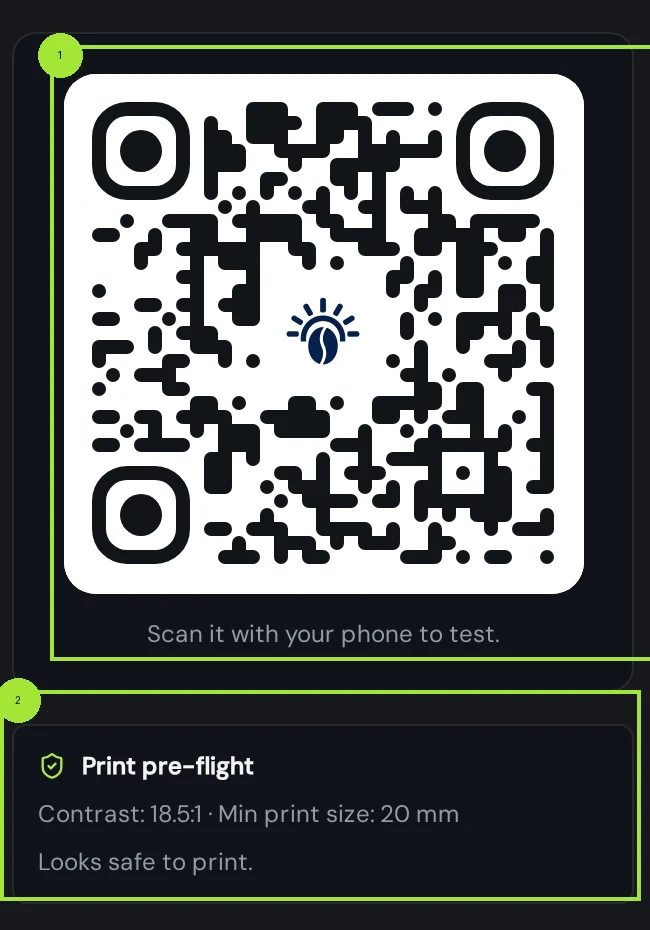
For print, download SVG or PDF rather than PNG: both stay sharp at any size, and the PDF comes out at the exact physical width you pick, with a safety margin around the code. A logo that looks fine on a 400-pixel screen can lose its edges when a printer reproduces it at 20 mm.
Colours: where branded codes actually fail
The logo is rarely what breaks a scan — colour is. Cameras need dark modules on a light background, with a contrast ratio of at least 3:1 and comfortably more on paper. Pastel brand palettes, light grey on white and inverted codes are the usual culprits, and pre-flight will tell you before the print run does.
- Keep the modules dark and the background light — never the other way round on paper.
- Apply brand colour to the modules and corner eyes, not to the background.
- Leave the quiet zone empty: no logo, no text, no frame edge inside it.
- Test on one cheap print before you order five thousand.
Domande frequenti
- Will a logo stop the QR code from scanning?
- Not at the sizes the editor allows. Error correction is raised to H when you add a logo, which repairs up to about 30% of the pattern, and the slider stops at 35% of the width — around 12% coverage. Scan the live preview once and you are done.
- What file format should I upload?
- SVG if you have it, otherwise a PNG with a transparent background. Square images work best. JPEG is accepted but its white box around the artwork can look heavy in the middle of the code.
- Is my logo uploaded to your servers?
- No. The file is read in your browser and encoded into the image you download, so there is nothing stored on our side.
- Can I add a logo on the Free plan?
- The full design editor, including the logo, is part of Pro and Business. Free accounts create and download codes in the default style; the public generator pages let you try the design tools before you sign up.
- Why does my logo look blurry when printed?
- Because the export was a raster file. Download SVG or PDF for anything printed: both keep the logo and the modules crisp at any physical size.
Prossimi passi
- How to create your first QR codeFrom an empty editor to a print-ready file in about two minutes, with the choices that matter explained.
- Your QR code will not scan: the checklistWork down this list in order — the first three causes account for most failures we see.
- What size should a QR code be for print?The short answer is one tenth of the reading distance — but payload length, quiet zone and file format decide whether that size actually scans. Here is the full method, with a print-ready export at the end.
Guide approfondite
- QR code design: contrast, quiet zone and logosThe design rules that decide whether a QR code scans on the first try or not at all, from contrast ratios to logo placement.
- QR code error correction and minimum print sizeHow much damage a QR code can survive is a number you choose at generation time, and it directly decides the smallest size you can safely print it.
- How to print QR codes: size, format and best practicesPrinting a QR code is not just about dropping a PNG into a layout. Format, size, contrast and material all decide whether the code scans reliably.