How to create a QR code for a restaurant menu
Updated September 20, 20266 min read
A menu QR code fails for one of two reasons: it points at a file that gets replaced, or it is printed too small to scan from a seated position. Both are fixed before you print, and this guide does it in four steps.
1. Choose the link the code will open
The code encodes a link, so the link decides whether the code survives your next menu update. Avoid anything that changes address when the file changes.
| Destination | Verdict | Why |
|---|---|---|
| A page on your site (/menu) | Best | You edit the page; the code never changes. |
| A dynamic QR code | Best | You edit the destination from the dashboard, even after printing. |
| A PDF uploaded to cloud storage | Risky | Re-uploading usually creates a new address and breaks the code. |
| A social post or story link | Avoid | Links expire and force guests into an app login. |
2. Generate and design the code
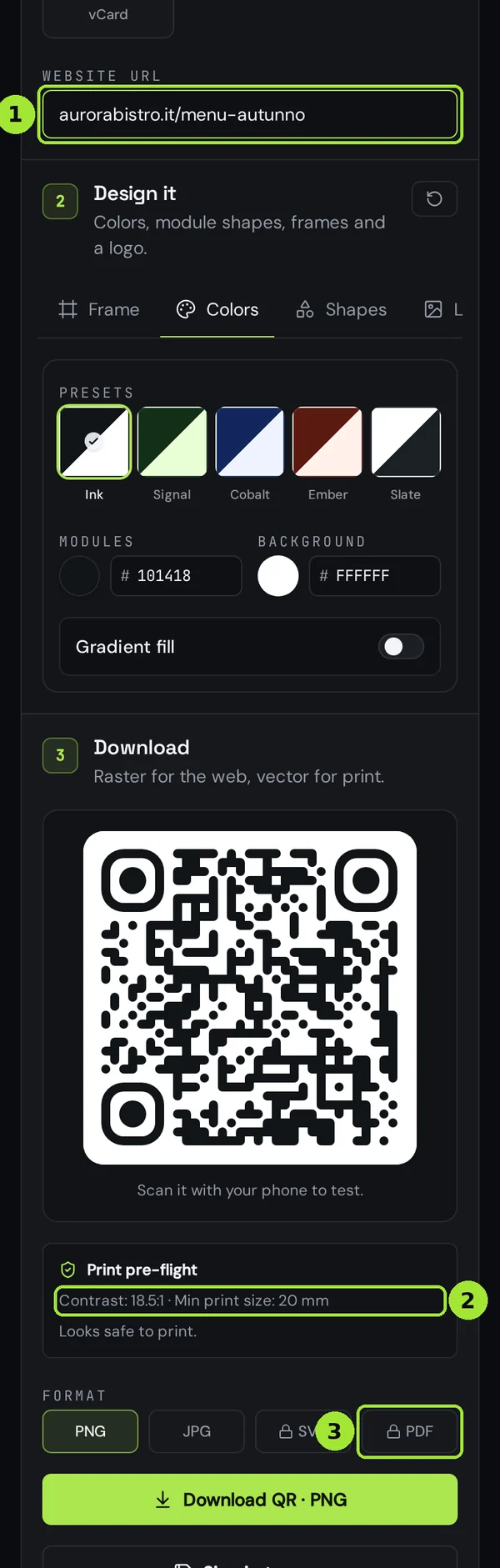
Open the URL generator, paste the menu link, and keep the design conservative: dark modules on a light background. Guests scan in low restaurant light, where a low-contrast code simply does not read.
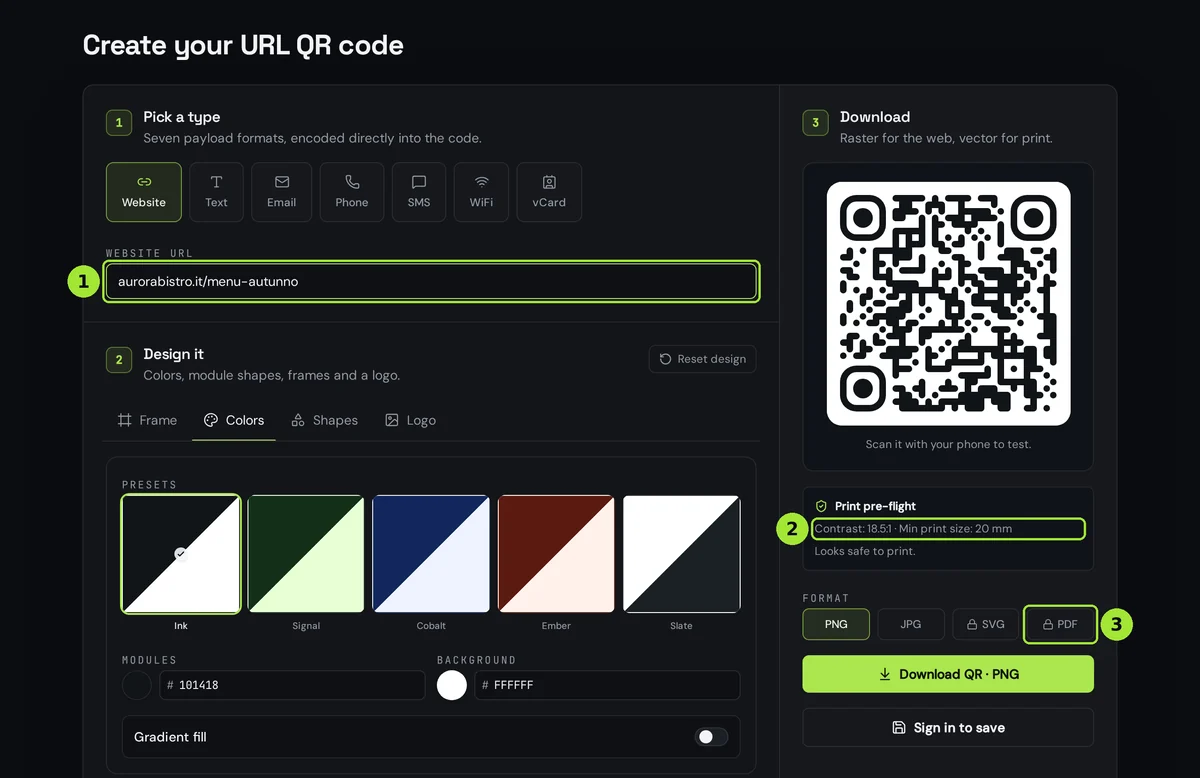
- Paste the menu link in the Website URL field.
- Leave the Ink preset, or pick a dark brand colour on a light background.
- Check the pre-flight line: contrast should stay above 4:1 and the minimum print size tells you how small you can go.
- Download SVG or PDF for anything that gets printed; PNG only for screens.
3. Print it at the right size
Table tents and menu cards are scanned from roughly 30 cm, so the usual minimum works well: about 25 mm of printed code plus a quiet margin all around.
| Placement | Scan distance | Printed code size |
|---|---|---|
| Table tent, menu card | ~30 cm | 25 mm |
| Laminated placemat | ~40 cm | 30 mm |
| Window or A-board | 1–2 m | 80–150 mm |
- Keep a clear margin of at least four module widths around the code — never crop to the edge.
- Print on matte stock; gloss and lamination create reflections that blind the camera.
- Add a short instruction such as “Scan for today's menu” so guests know what they get.
- Never place the code where a plate or a napkin holder will cover it.
4. Track scans and update the menu
With a dynamic code the printed card stays valid forever: you change the destination in the dashboard and the next guest lands on the new page. Scan data also tells you which room, shift or table set actually gets used.
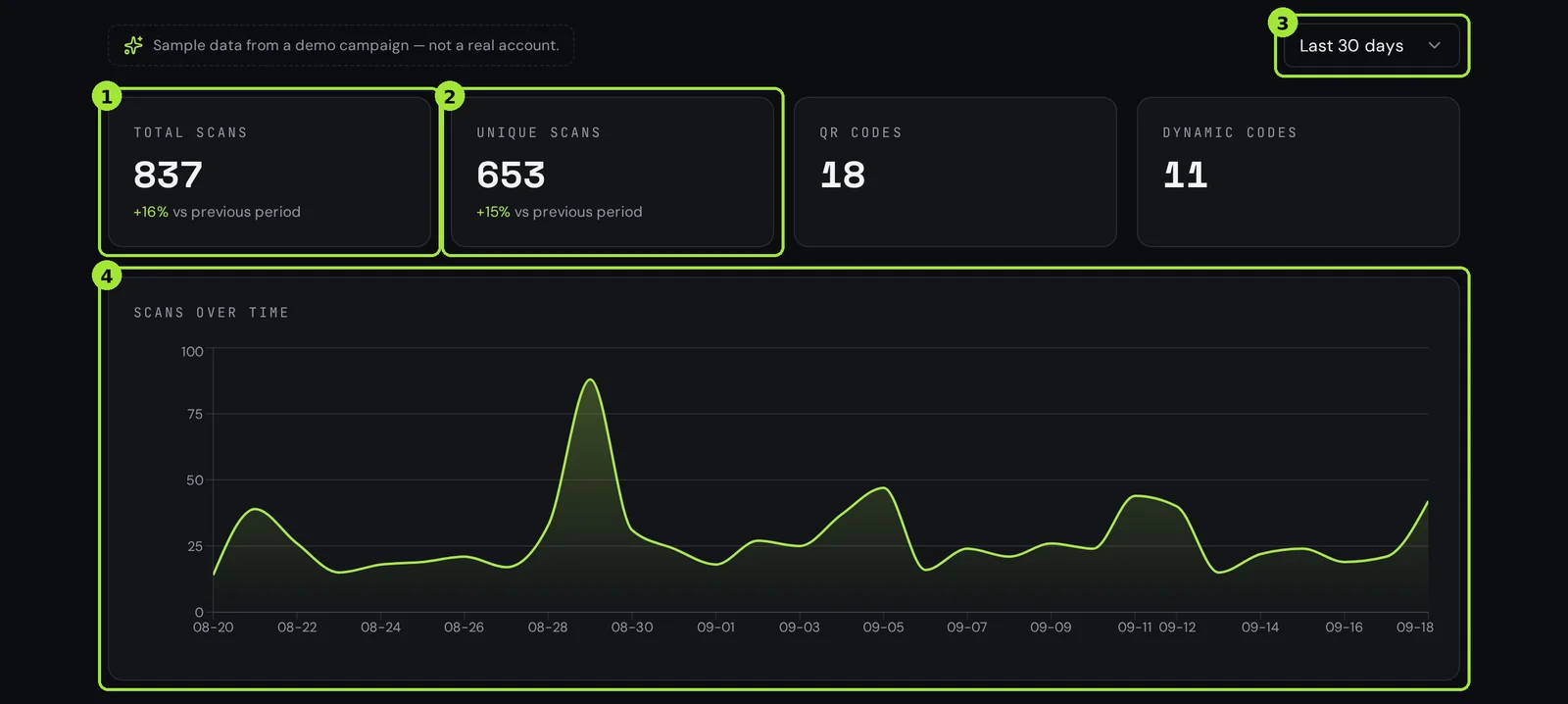
- Use one code per room or per table range to see where scans happen.
- Watch the first fortnight: a flat line usually means the card is badly placed, not that guests dislike QR menus.
- Change the destination when the seasonal menu goes live — the printed cards need no reprint.
Frequent questions
- Do I need a website to make a menu QR code?
- No. A dynamic QR code can point at a hosted menu page you build in Qreator, so you can print the code before you have a website.
- How big should a menu QR code be?
- About 25 mm of printed code for a table tent scanned at 30 cm, 30 mm on a placemat and 80–150 mm for a window, always with a clear margin around it.
- Can I change the menu without printing new cards?
- Yes, if the code is dynamic. You edit the destination in the dashboard and every printed card opens the new menu immediately.
- Should the menu be a PDF?
- Prefer a web page. PDFs pinch-zoom badly on phones and re-uploading a file often changes its address, which breaks the printed code.
- Can I see how many guests scan the menu?
- Dynamic codes count every scan with day, device, browser language and country, without cookies or personal data.
Next steps
- QR codes for bars and coffee shopsThe drinks list that never goes out of date, loyalty sign-up in the ninety seconds at the till, and the window that fills a quiet Tuesday afternoon.
- QR codes for hotels and guest housesCheck-in, room Wi-Fi, the room directory, the bar menu and the review request. Which of the five must stay editable after printing, how big to print each one, and when one code per room is worth it.
- How to create a WhatsApp QR codeOne scan opens WhatsApp on your number with the first message already written. The number format is where almost every WhatsApp code goes wrong — here is the correct one, and what to pre-fill.
In-depth guides
- QR codes for restaurants: from menu to reviewsA practical setup for restaurant QR codes that covers the menu, guest WiFi and post-meal reviews without reprinting every season.
- Static vs dynamic QR codes: the definitive guideThe difference isn't a marketing tier, it's a difference in what is physically encoded in the pixels — and it decides whether you can ever change the destination.