How to create QR codes in bulk from a spreadsheet
Updated September 19, 20265 min read
Five hundred table tents, asset tags or product labels all need their own QR code, and generating them one by one is a day lost. Paste a spreadsheet instead: Qreator parses the rows, renders every code with the same design and hands you a ZIP with matching file names.
1. Prepare the spreadsheet
Export your sheet as CSV with a header row. Only one column is required — the destination — and two optional columns control naming and the caption printed under each code. Commas, semicolons and tabs all work as separators, and quoted fields are handled.
| Column | Required | What it does |
|---|---|---|
| value (or url, link, content) | Yes | What the code encodes: a URL, text, anything scannable. |
| name (or filename, id) | No | The file name inside the ZIP. Cleaned up and de-duplicated automatically. |
| label (or caption) | No | A short caption rendered under the code, e.g. TABLE 01. |
Without a header row the first column is read as the value and the second as the name, and you get a warning saying so. Rows with an empty value are skipped and counted, so the row total you see is always the number of codes that will actually be produced.
2. Paste the rows and check the count
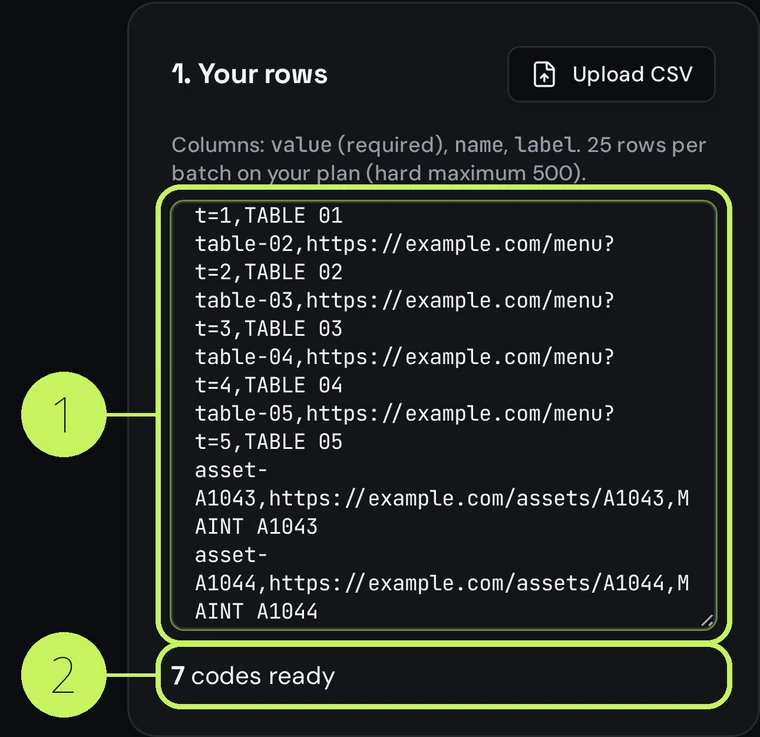
Open the bulk generator, paste the CSV into the box or press Upload CSV to load the file. The parser runs on every keystroke: the line under the box tells you how many codes are ready, and any problem — a missing value column, skipped rows, rows beyond your plan's limit — appears as plain text right there.
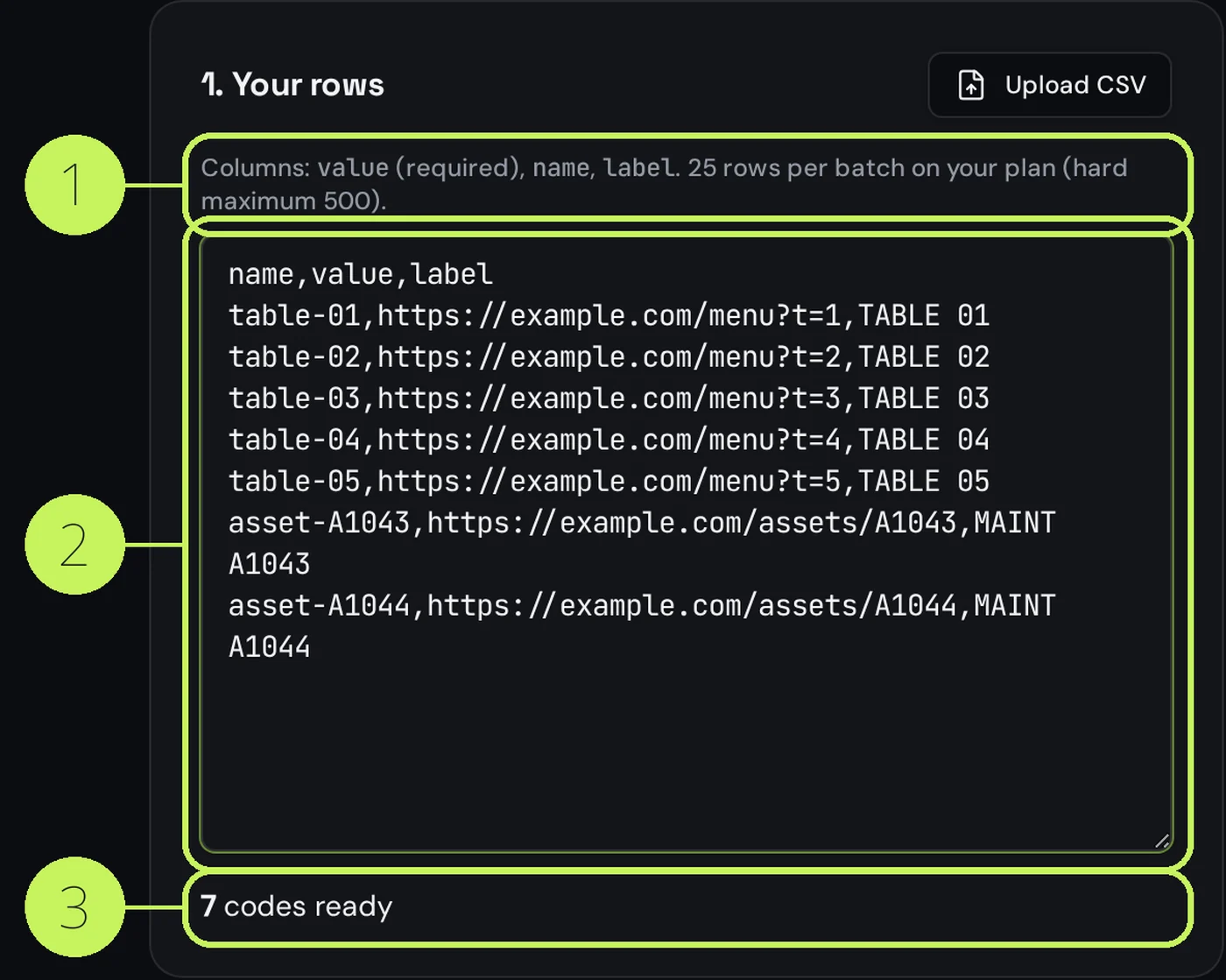
Batch size depends on your plan: 25 rows per batch on Free, 250 on Pro and 500 on Business, which is also the hard maximum for a single run. Larger lists are not rejected — only the first allowed rows are generated, so split a long sheet into successive runs.
3. Choose format, size and colours
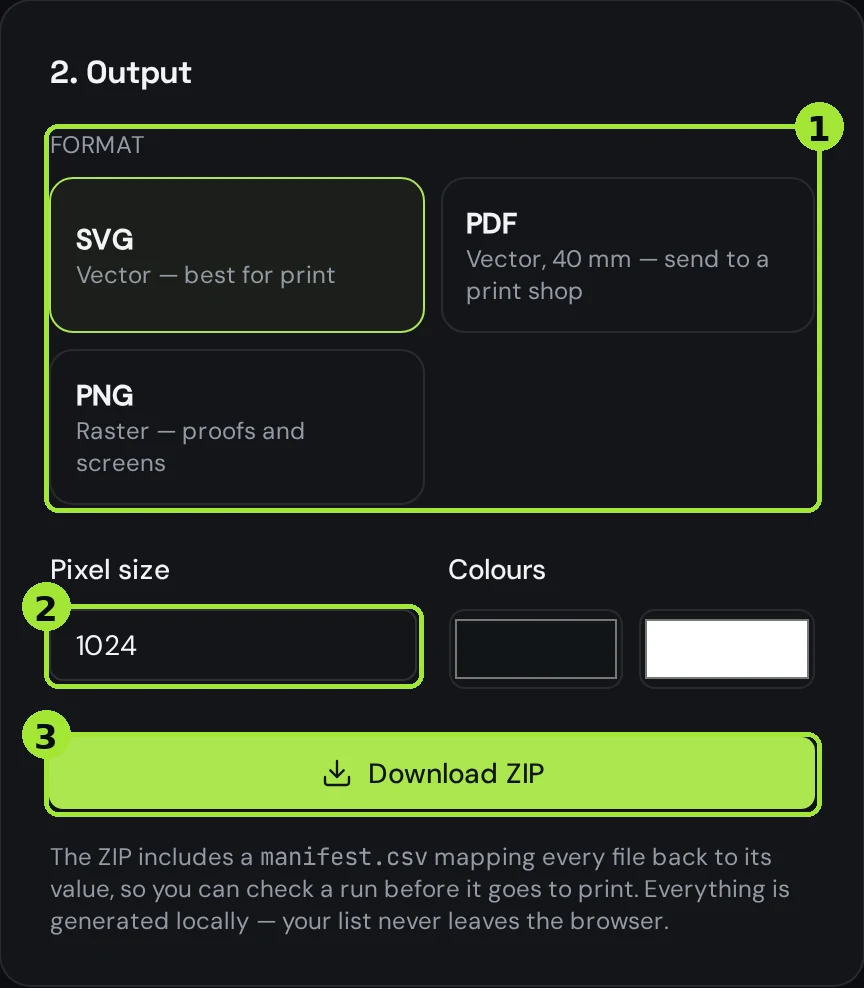
Pick SVG or PDF when the files go to print: both are vector, so the artwork stays sharp at any size, which is what decides whether a small label still scans. SVG drops straight into a layout program; the PDF arrives at a fixed 40 mm with a quiet-zone margin, ready to hand to a print shop as is. PNG is for proofs, screens and slide decks — the pixel size only affects PNG, and the two colour pickers apply the same foreground and background to every code in the run.
4. Verify the ZIP before it goes to print
- Open manifest.csv in the ZIP: one line per file with the value it encodes. Spot-check a handful against your source sheet.
- Scan three codes from the set — the first, one in the middle and the last — to catch an off-by-one column mapping.
- Confirm file names match what your print supplier expects; the name column is what lands in the layout template.
5. When to use a dynamic bulk import instead
On a paid plan, Bulk import in the dashboard turns each row into a saved dynamic code with its own short link. The printed artwork points at that short link, so you can change the destination later and read scan analytics per code. The CSV there uses name and url columns.
| Batch tool | Dynamic import | |
|---|---|---|
| Account needed | No | Yes, paid plan |
| Codes saved to your account | No | Yes |
| Destination editable after printing | No | Yes |
| Scan analytics | No | Yes |
| Rows per run | 25 / 250 / 500 by plan | 25 on Pro, 250 on Business |
A dynamic import consumes your dynamic-code quota, one code per row, so a 25-row import on Pro uses the whole allowance. If the numbers do not add up, the import stops before creating anything and tells you which limit was hit.
Frequent questions
- How many QR codes can I generate at once?
- 25 rows per batch on the free plan, 250 on Pro and 500 on Business. 500 is the hard maximum for a single run; longer lists are generated in successive batches.
- Which columns does the CSV need?
- Only a value column (also accepted as url, link or content). Optional name sets the file name in the ZIP and optional label prints a short caption under the code.
- Are bulk-generated codes editable later?
- Not from the free batch tool — those are static files. Use the dynamic bulk import on a paid plan to get codes you can repoint and track after printing.
- Is my list uploaded anywhere?
- No. The free batch tool parses, renders and zips everything inside your browser, so the spreadsheet never leaves your device.
Next steps
- QR codes for an event: tickets, check-in and programmeWhich codes to prepare, how to produce one per attendee from a spreadsheet, and what to lock down the week before the doors open.
- Static or dynamic: which QR code do you need?One decision decides whether you can fix a mistake after printing. Here is how to make it in thirty seconds.
- Plans, upgrades and invoicesHow billing works, and the one rule that matters: your dynamic codes keep resolving.
In-depth guides
- Bulk QR code generation: from CSV to print-ready filesA practical workflow for batch QR generation: how to structure the CSV, name the exported files so prepress can find them, and decide between static and dynamic rows.
- How to print QR codes: size, format and best practicesPrinting a QR code is not just about dropping a PNG into a layout. Format, size, contrast and material all decide whether the code scans reliably.