Your QR code will not scan: the checklist
Updated September 20, 20267 min read
A code that scans on your monitor and fails on paper almost always fails for a physical reason: it is too small, too tight to its surroundings, or not contrasted enough. Go through these in order and stop at the first one that applies.
1. It is printed too small
The working rule is that the printed code should be at least a tenth of the expected scanning distance: 2 cm for a code read at 20 cm, 20 cm for a poster read from 2 m. Below about 2 cm on paper, ordinary phone cameras struggle no matter how good the file is.
2. There is no margin around it
Scanners need an empty band — the quiet zone — roughly four module widths wide on every side to find the code's edges. Text, a border or a photo pressed against the pattern breaks detection even when the code itself is perfect. Never crop the exported margin away in a layout tool.
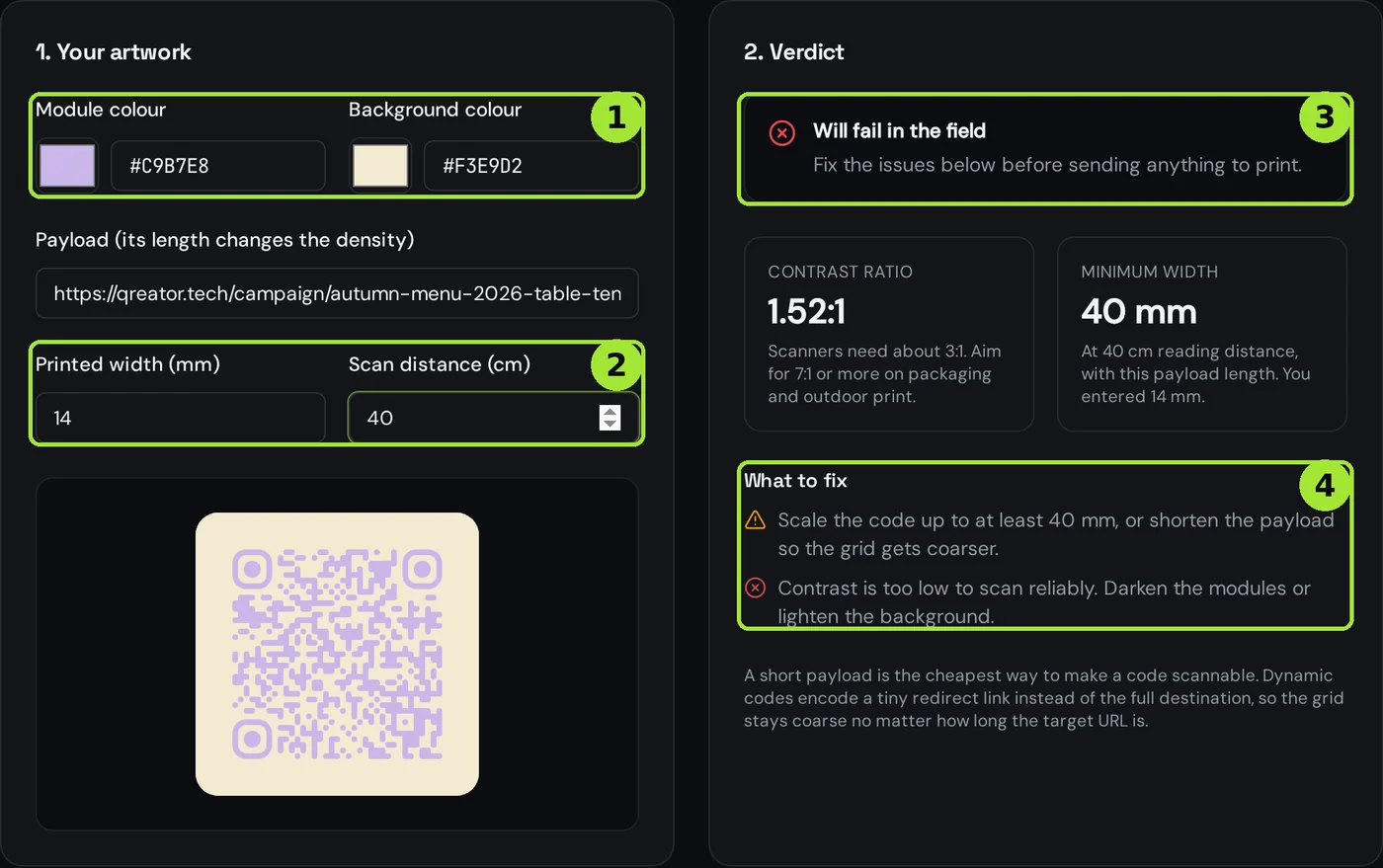
3. Contrast is too low or inverted
- Keep the pattern dark on a light background. Light-on-dark works on some phones and fails on others.
- Avoid pastel on pastel, gold on cream, and gradients that fade into the background.
- Beware of print gain: ink spreads slightly on uncoated paper, which eats thin light gaps.
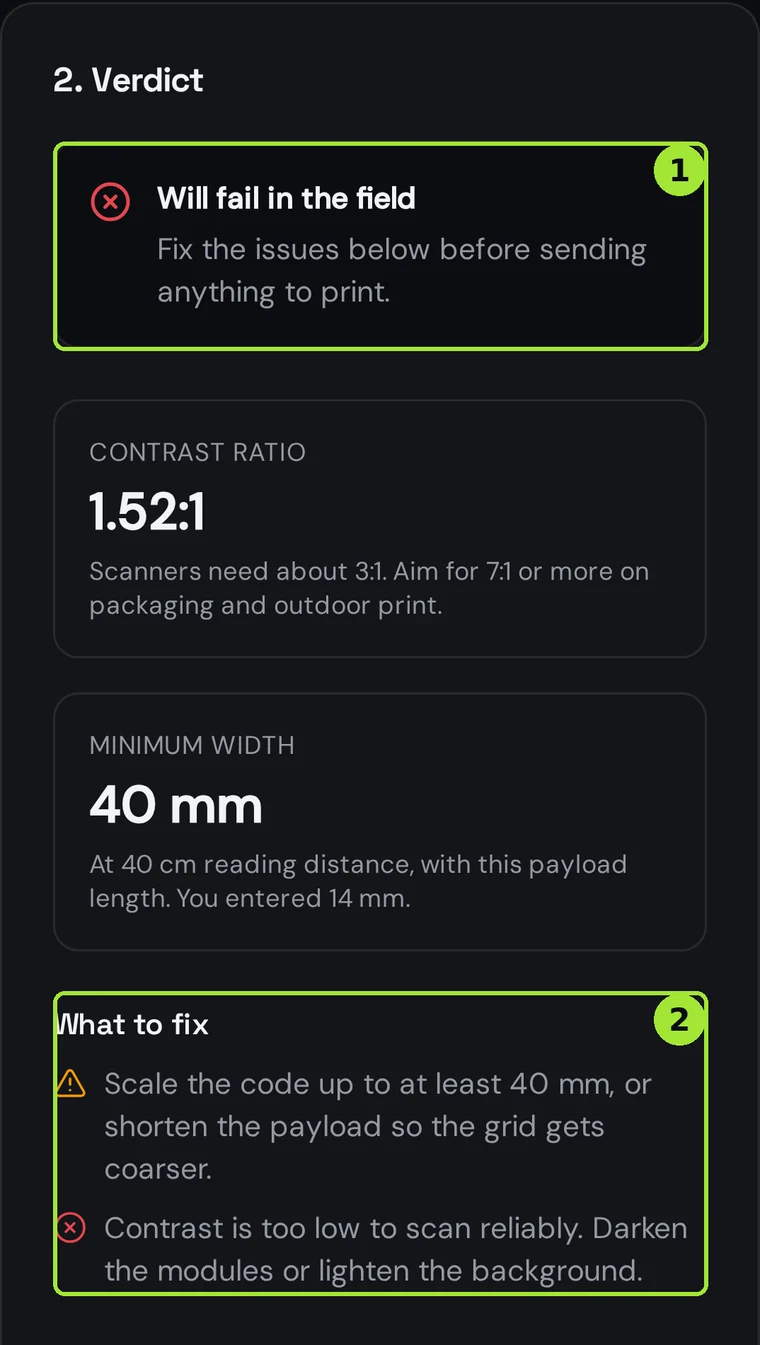
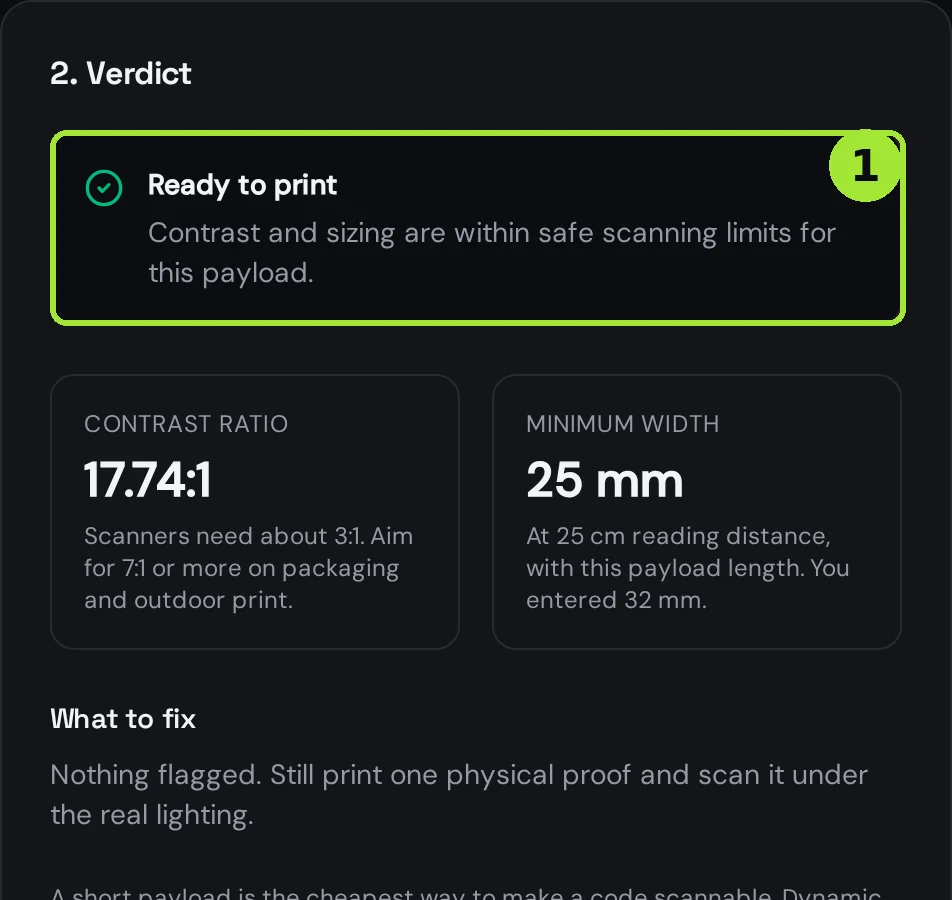
You do not have to guess any of this. Paste the exact colours and the printed width into our free contrast checker and it tells you the ratio, the minimum width for your reading distance, and what to change.
4. The logo covers too much
A centre logo is allowed because error correction can reconstruct what it hides — up to a point. Keep it under roughly a fifth of the code width, never let it touch the three corner squares, and raise the error-correction level when you add one.
5. The material fights the camera
- Glossy laminate and glass throw reflections: matte finishes scan far more reliably.
- Curved surfaces such as bottles distort the pattern; print smaller and flatter, or move the code to a label panel.
- Textile and corrugated card blur module edges; increase both size and error correction.
6. The file was resized badly
A PNG scaled up in a layout program turns crisp squares into blurred grey mush. Export SVG or PDF for anything printed — both are vector, so the printer can scale them without losing an edge, and the PDF already carries the physical size in millimetres.
7. The code scans, but the page fails
If the camera recognises the code and the browser then shows an error, the pattern is fine and the destination is the problem: a typo in the URL, an expired campaign page, a scheduling window that has closed, or a scan limit that has been reached. Check the code in your dashboard.
8. Still failing?
- Decode the printed code with our reader tool to see exactly what it contains.
- Test with two different phones — one iOS, one Android — before blaming the code.
- Print a plain black-and-white version at the same size; if that scans, the design is the cause.
Frequent questions
- What is the minimum size for a printed QR code?
- About 2 cm for close reading, and roughly one tenth of the scanning distance for anything further away. Shorter encoded content allows smaller sizes.
- Why does my QR code work on screen but not on paper?
- Screens have perfect contrast and no ink spread. On paper, size, margin, finish and ink gain all reduce readability — check those four first.
- Can I use white code on a dark background?
- It is risky. Some scanners accept inverted codes and others do not, so keep the pattern dark on light whenever the print matters.
Next steps
- How to create your first QR codeFrom an empty editor to a print-ready file in about two minutes, with the choices that matter explained.
- Understand your scan analyticsScans over time, countries, devices and referrers — and what each one is good for.
- How to create a WiFi QR codeThree fields and one download: a code that puts any phone on your network without a password being read out loud. It keeps working when there is no mobile signal at all.
In-depth guides
- How to fix a blurry QR code, step by stepFour checks fix almost every blurry QR code: find where the blur came from, re-export at the right DPI, verify size and contrast, then re-test the print.
- Low contrast QR codes: how far you can push colour before scans failContrast is the single biggest predictor of whether a QR code scans. Here are the thresholds, the colour pairs that fail, and how to check yours before print.
- QR code error correction and minimum print sizeHow much damage a QR code can survive is a number you choose at generation time, and it directly decides the smallest size you can safely print it.